PreciVault 🔐
A secure and user-friendly password manager app for Frappe/ERPNext
🔒 Overview
PreciVault is a secure and user-friendly app built on the Frappe framework to help you store, manage, and organize your passwords. It uses strong encryption to keep your data safe while providing modern features like:
- 🔑 Password generation
- 🧠 Auto-fill support
- 🔄 Multi-device syncing
- 🧭 Simple and clean UI
- 🕒 TOTP Authenticator Support
🚀 Installation
You can install PreciVault in your ERPNext bench using the Frappe Cloud.
📸 How to Use
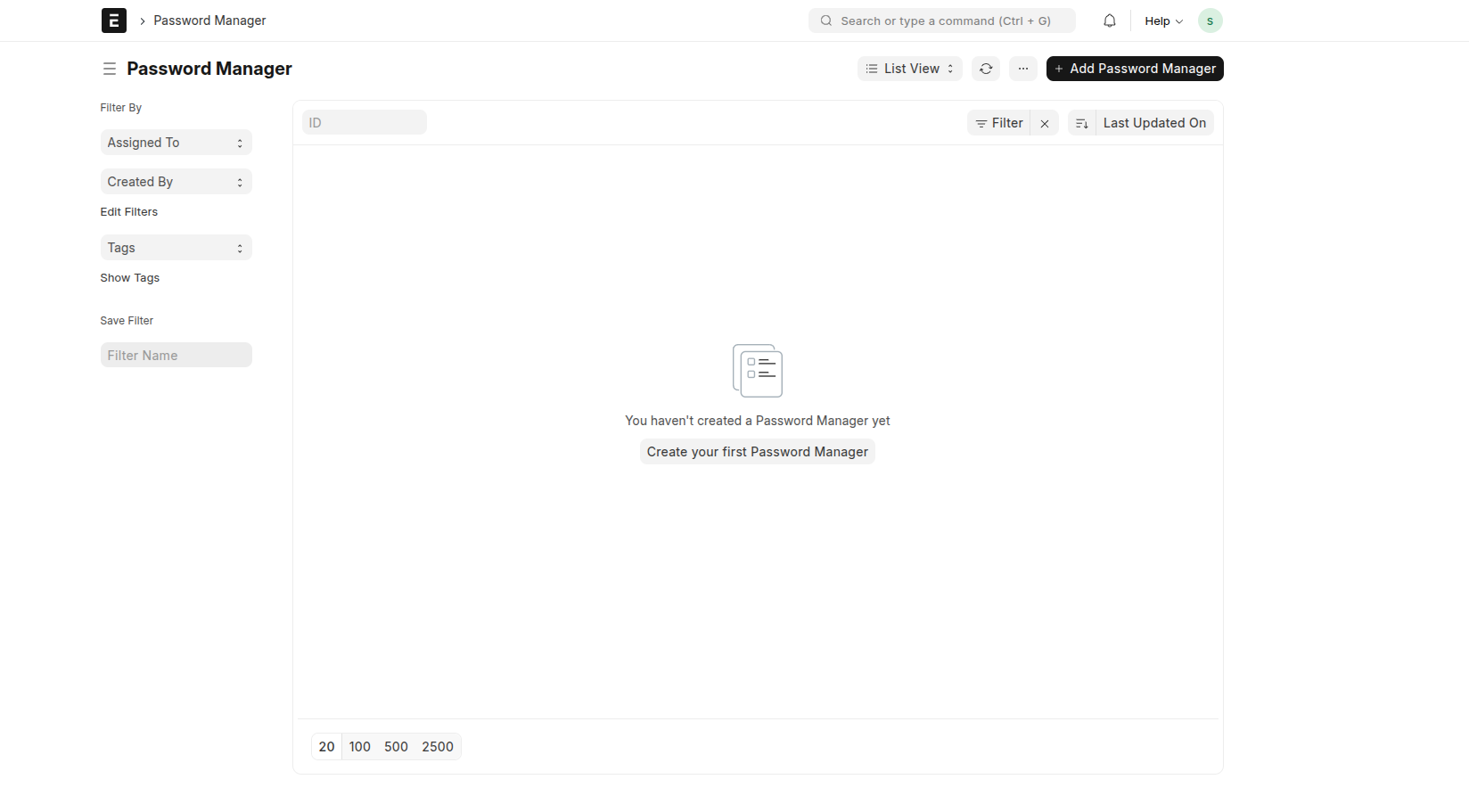
Step 1: Search for Password Manager
Go to the search bar and open the Password Manager DocType.
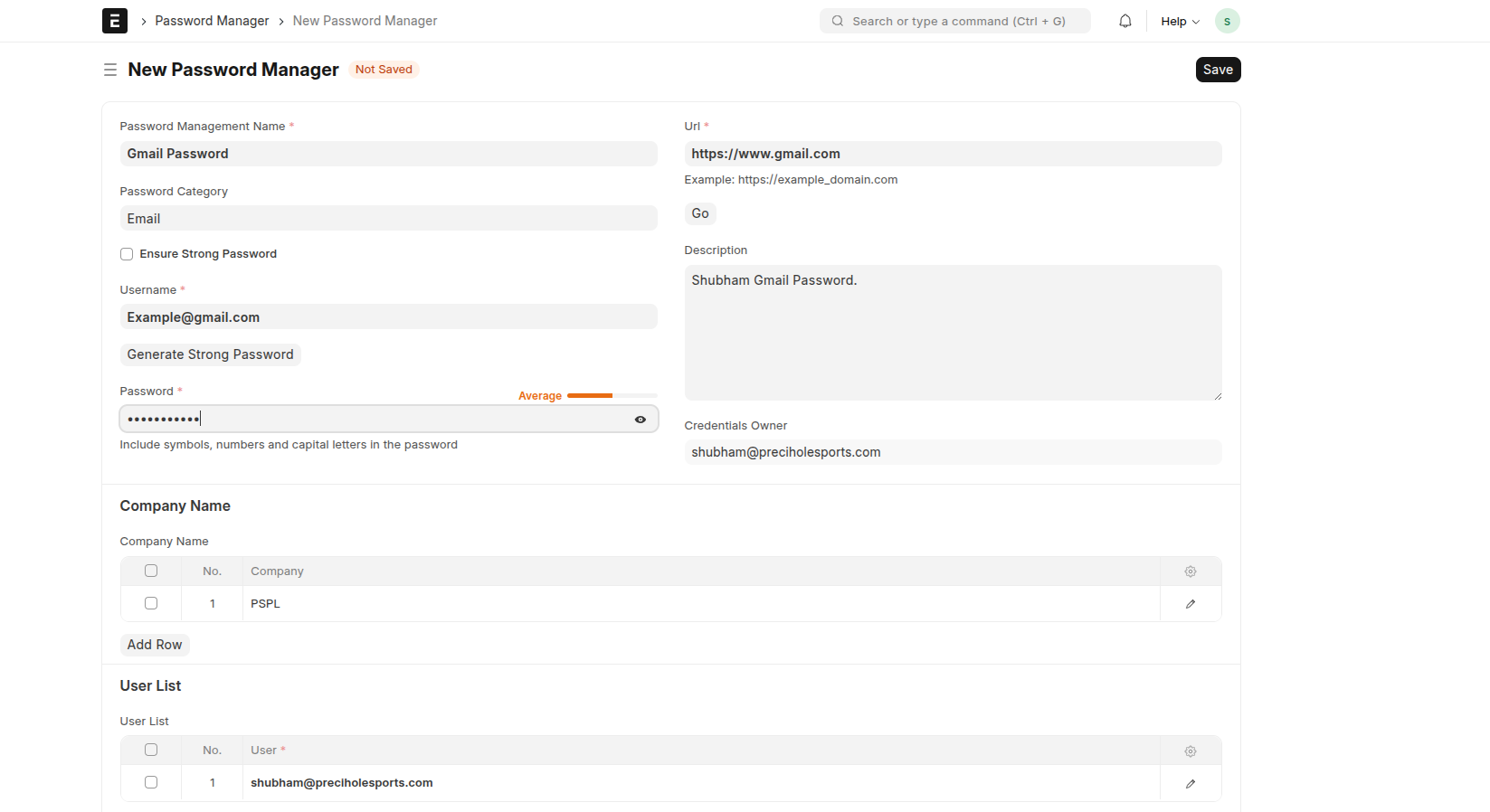
Step 2: Add Your Credentials
Enter your password-related details such as:
- Website / Application name
- Username
- Password
Then click Save.
Step 3: Saved Document View
After saving, your document will look like this.
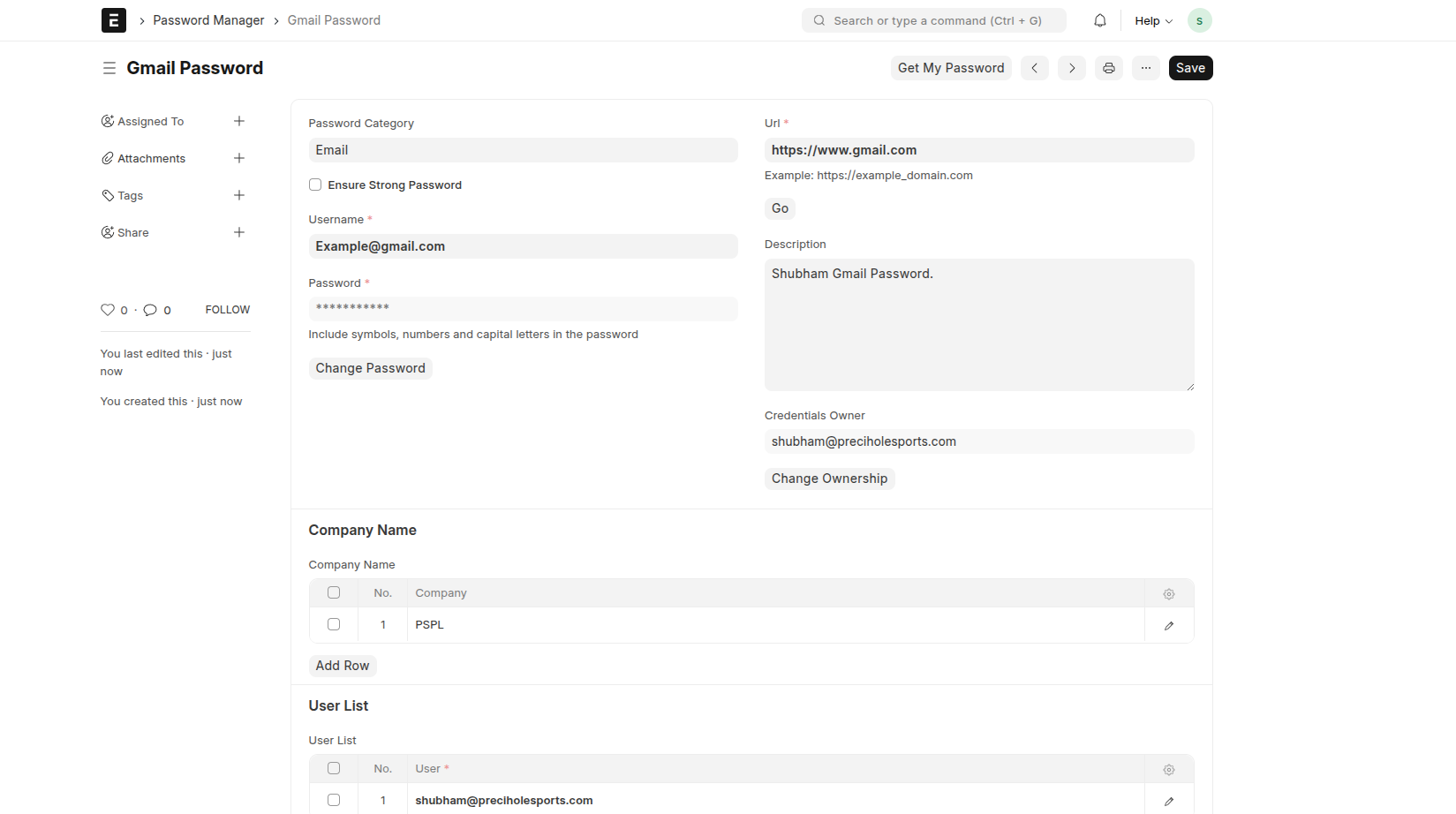
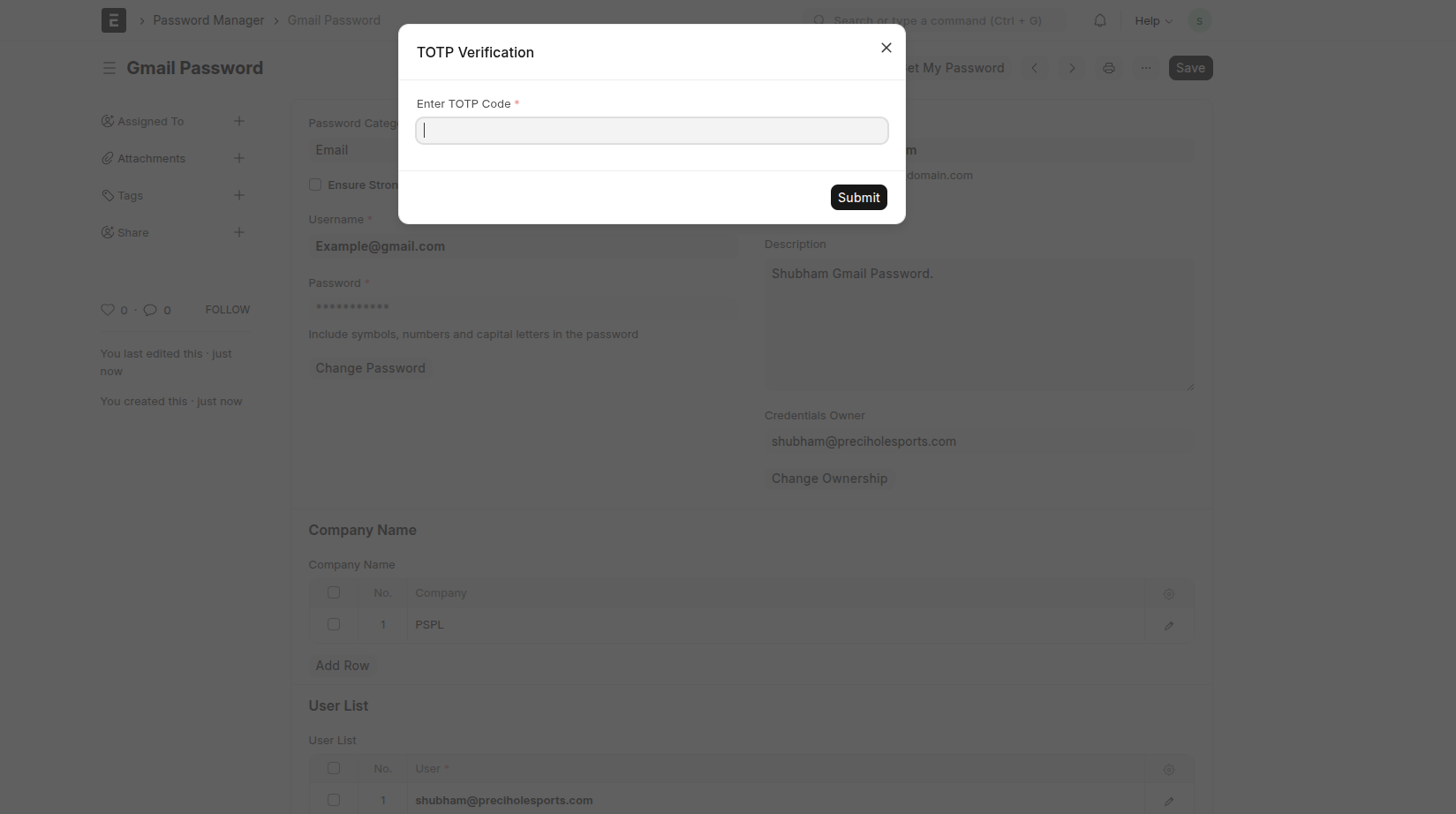
Step 4: View Your Password
Click on the "Get My Password" button.
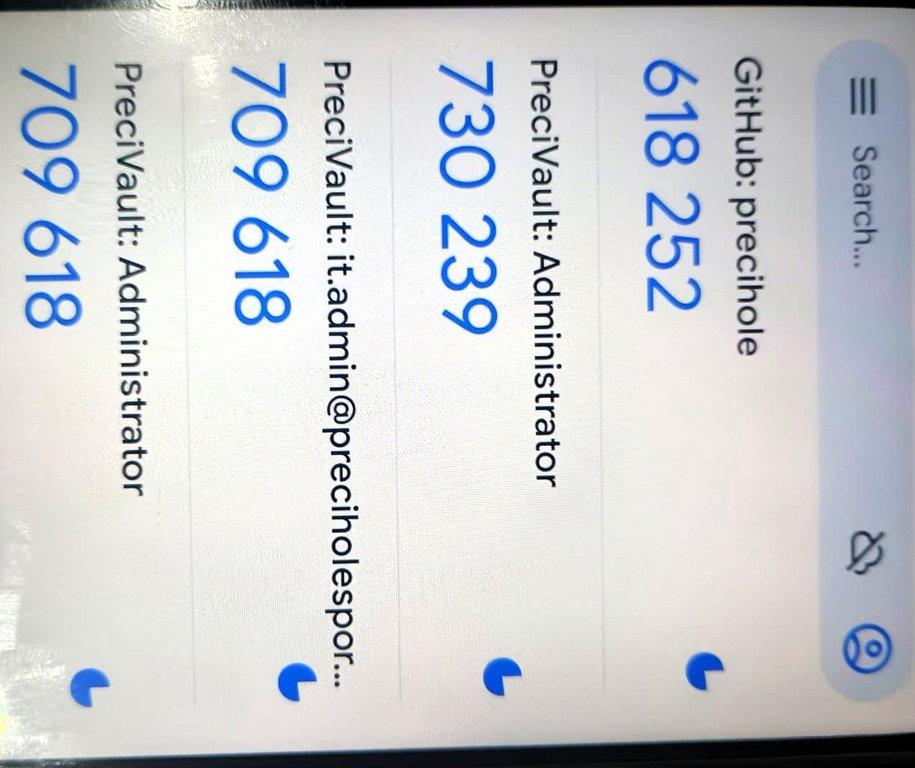
Enter your TOTP code to securely retrieve your password. You will get your TOTP in the
Google Authenticator app, as shown in Step 6.1.
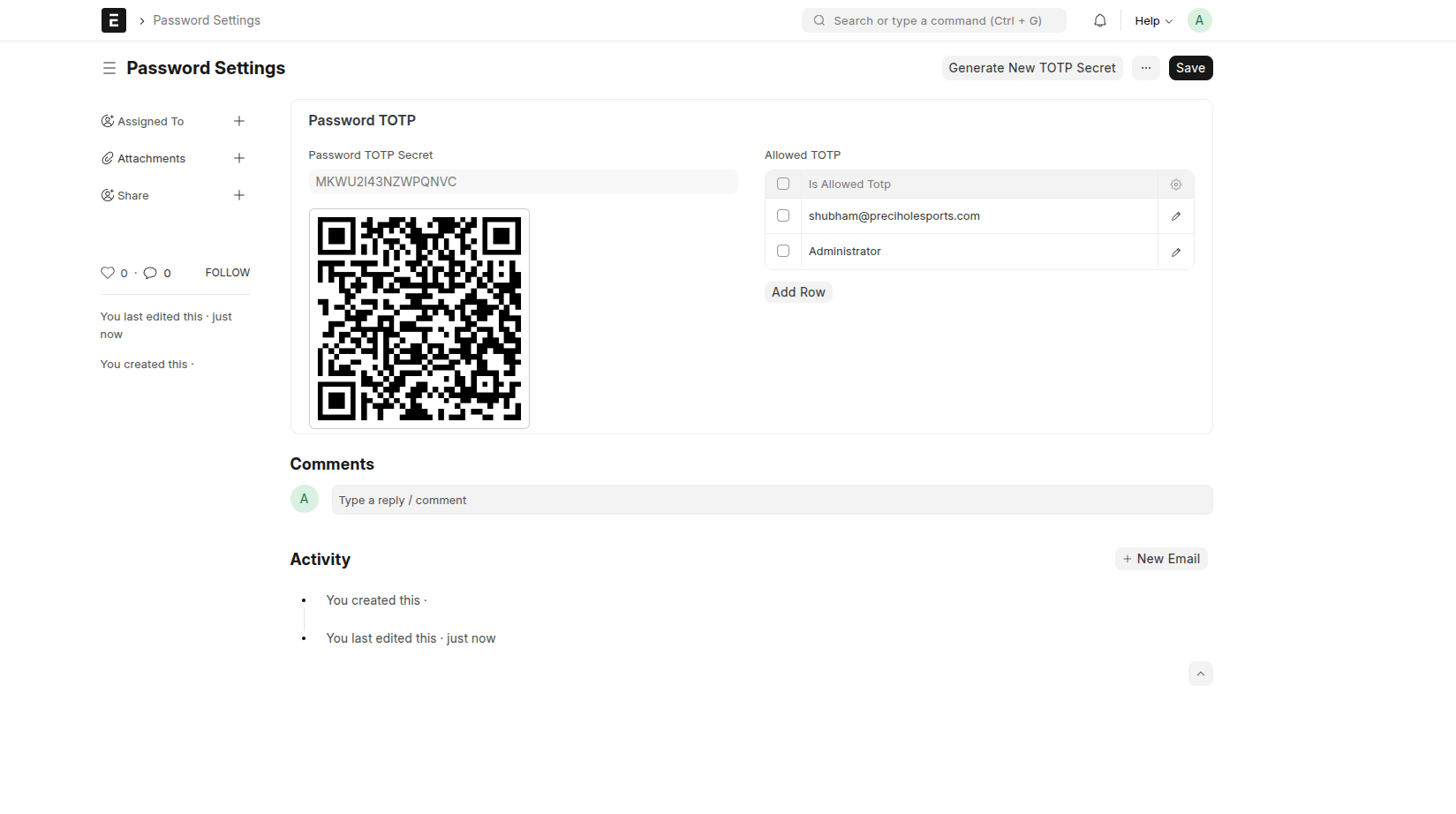
Step 5: Open Password Settings (Admin Only)
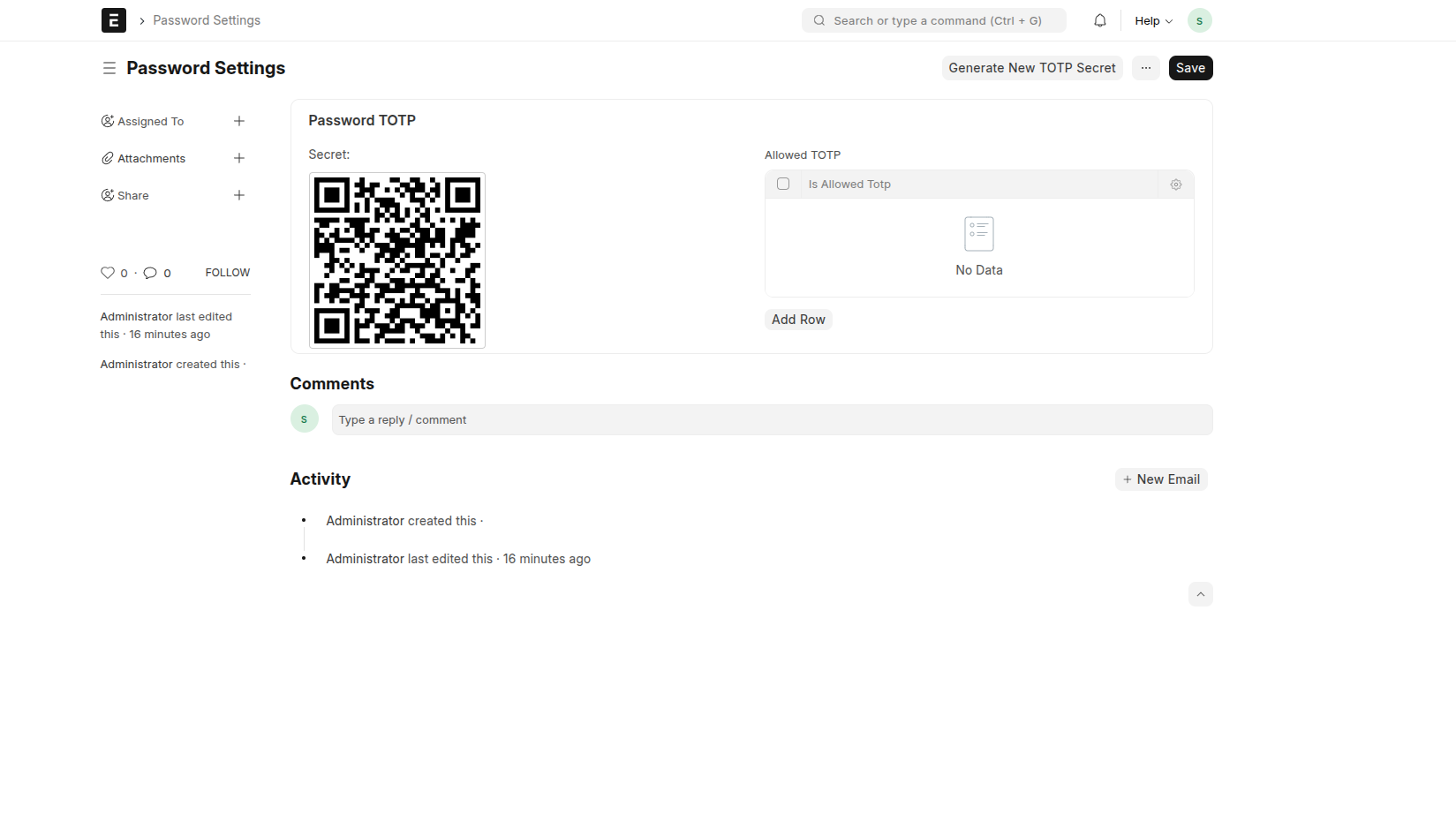
Log in with the Administrator account and open the Password Settings DocType.
Click on "Generate New TOTP Secret".
⚠️ Only the Administrator can perform this action.
Step 6: Setup TOTP (Google Authenticator)
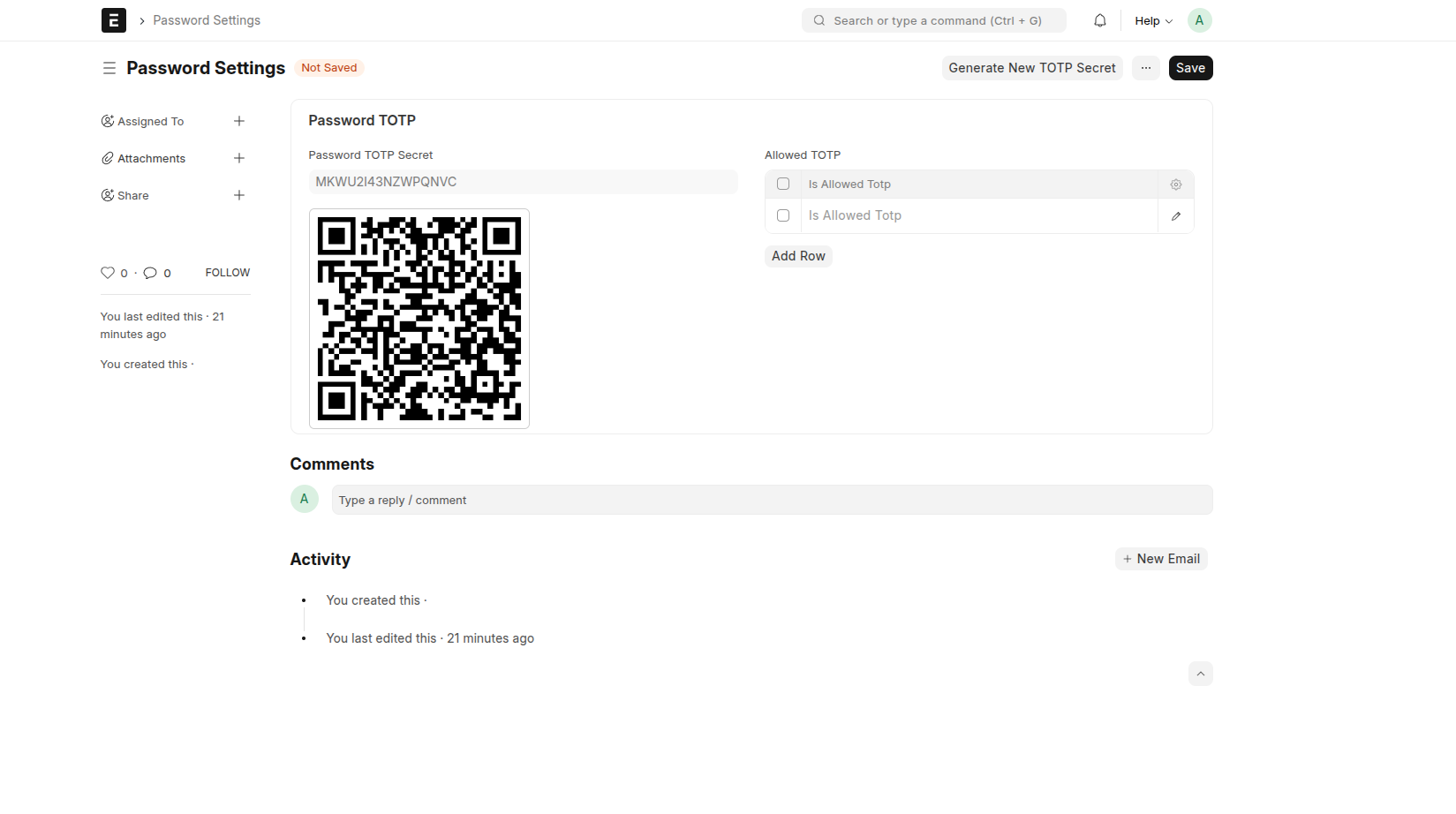
After generating the TOTP secret:
- A QR code will appear
- Scan it using the Google Authenticator app or any TOTP app
📱 Download Google Authenticator:
- Android: Google Play Store
- iOS: App Store
Step 6.1: View 6 Digit TOTP from Google Authenticator App
View the 6-digit TOTP from the Google Authenticator app and enter it in the Password Manager DocType when you want to change or view the password.
Step 7: Allow TOTP Access to Users
In the Allowed TOTP field:
- Add user email IDs
- Only those users can view the QR code
By default:
- Only Administrator has access
- Only Administrator can add/remove users